Stutter on Ada GPUs (4070 Ti SUPER, 4080, 4090): The Real Cause and the Real Fix
Modern Ada‑Lovelace GPUs introduce far deeper idle states than previous generations. Under Windows 11 this creates a timing race condition during boot — here is why, and how one setting fixes it.
Click the icon to read our Responsible AI Usage guidelines.
Modern Ada‑Lovelace GPUs — the RTX 4070 Ti SUPER, 4080, and 4090 — introduce far deeper idle states and more aggressive power gating than any previous NVIDIA generation. Under Windows 11, this can create a timing race condition during boot and display initialization, especially on high‑end displays running OLED, 4K, 120 Hz, HDR, VRR, or DSC.
This post documents the symptoms, the underlying cause, and the fix.
Symptoms
Users report a consistent cluster of problems:
- Micro‑stutter on desktop animations
- Cursor hitching or "rubber banding"
- Lag when opening or dragging windows
- Smooth performance sometimes after reboot, stutter other times
- Stutter disappearing after a display flicker (HDR toggle, refresh rate change, TV off/on)
- Stutter appearing when Xbox Gaming Services loads
- Stutter appearing when multiple displays initialize at boot
- GPU clock jumping from 210 MHz → 2755 MHz → 210 MHz repeatedly
- VRAM clock collapsing to 405–810 MHz at idle
These symptoms are not caused by:
- Bad drivers
- Bad hardware
- A bad Windows install
- Bad cables or a bad display
- "NVIDIA bugs"
They are caused by timing.
Root Cause: GPU Wake Timing vs. the Windows Display Pipeline
Ada GPUs enter extremely deep idle states:
- Core clock: 210 MHz
- VRAM clock: 405–810 MHz
- PCIe link: aggressively power‑gated
- Wake latency: significantly higher than Ampere
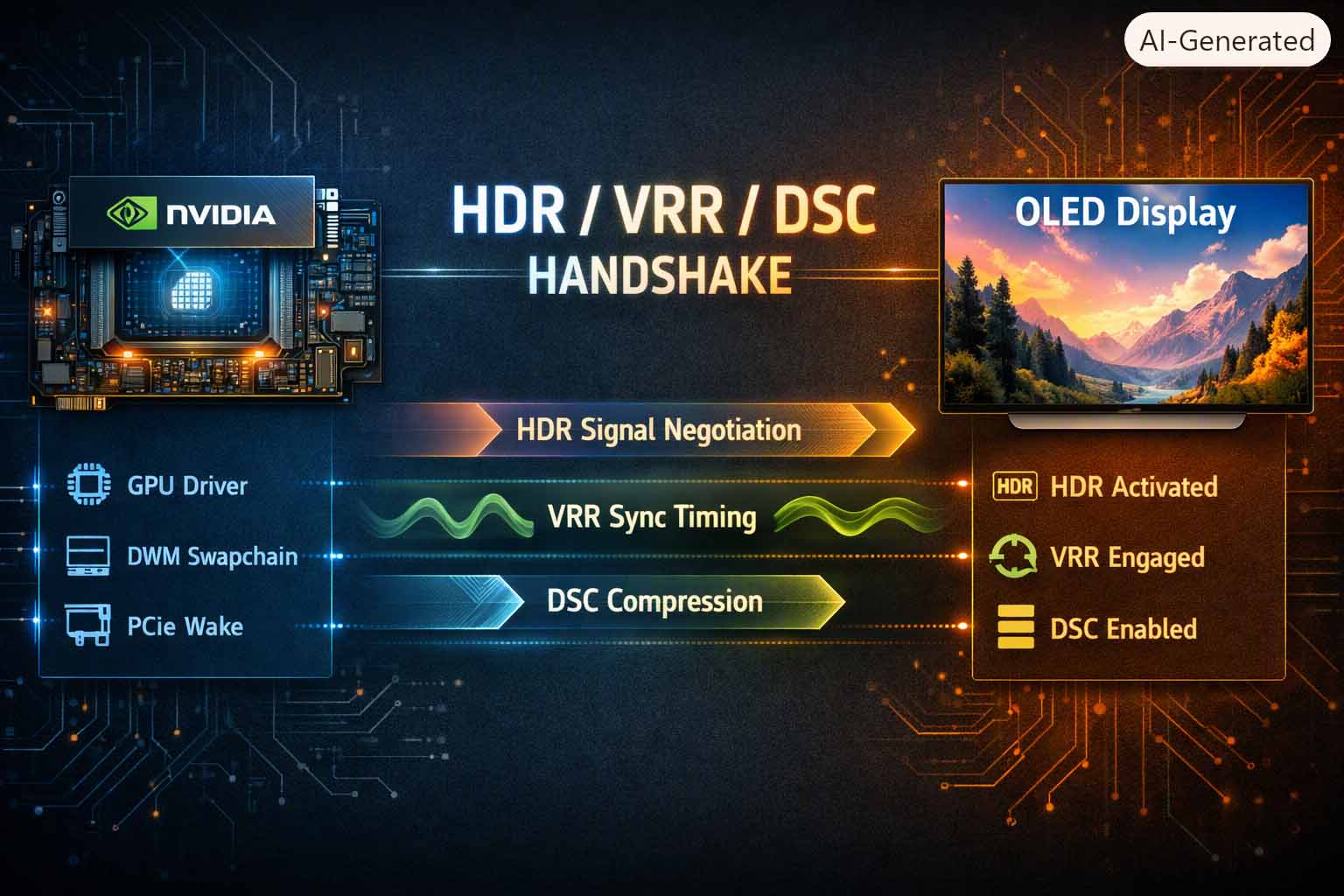
During Windows boot, several components initialize in rapid succession:
- GPU driver
- HDR pipeline
- VRR handshake
- DSC compression negotiation
- Desktop Window Manager (DWM)
- Xbox Gaming Services (DirectX hooks)
- WebView2 GPU contexts
- Multi-display negotiation
If the GPU is still in a deep idle state when any of these components initialize, the wake cycle collides with the display pipeline. This produces compositor stalls, stutter, and timing-dependent instability that varies from boot to boot.
If the GPU wakes before these components initialize, everything is smooth.
This is why the issue feels random — it is not random, it is timing.
Why a Display Flicker Fixes It
Any display flicker (an HDR toggle, a refresh rate change, turning the TV off and on) forces:
- A fresh HDR handshake
- A fresh VRR handshake
- A fresh DSC negotiation
- A fresh DWM swapchain
- A fresh GPU wake cycle
This reinitializes the entire display pipeline after the GPU is fully awake. The stutter disappears instantly.
That is the smoking gun. A flicker fixing stutter is direct evidence of a wake‑timing collision, not a driver or hardware defect.
Why Ampere (RTX 30-Series) Never Had This Problem
Ampere (the RTX 30-series, the previous generation) was more forgiving:
- Shallower idle states
- Simpler DSC behavior
- Simpler VRR/HDR timing
- Less aggressive power gating
- Lower wake latency
Ada is more powerful — and considerably more timing‑sensitive. The same Windows boot sequence that worked fine on Ampere can collide with Ada's deeper power states.
The Fix: Force the GPU to Wake Early
The single most effective fix is a single setting in NVIDIA Control Panel:
NVIDIA Control Panel → Manage 3D Settings → Power Management Mode → Prefer maximum performance
This setting is frequently misunderstood. It does not:
- Force the GPU to run at max clocks
- Increase power consumption significantly at idle
- Overclock anything
What it does do:
- Raises the minimum idle clock
- Prevents deep power gating
- Stabilizes wake transitions
- Ensures the GPU is awake before Windows initializes the display pipeline
By eliminating the deep idle state entirely, there is no timing race to lose. This is the global fix.
Supporting Fixes
These additional changes reduce timing instability further and are worth applying alongside the primary fix.
Disable PCIe Link State Power Management (Windows)
Control Panel → Power Options → Change plan settings → Change advanced power settings → PCI Express → Link State Power Management → Off
This prevents Windows from power‑gating the PCIe bus itself, which can compound the GPU wake delay.
Disable the NVIDIA Overlay
The GeForce Experience / NVIDIA App overlay can hook the GPU early in the boot sequence. Disabling it removes one more source of timing pressure.
Disable HAGS (Hardware-Accelerated GPU Scheduling)
Windows Settings → System → Display → Graphics → Default Graphics Settings → Hardware-Accelerated GPU Scheduling → Off
HAGS moves GPU scheduling into the kernel. On Ada, this can interact poorly with the deep idle state during initialization.
Disable MPO (Multi-Plane Overlay)
MPO is a Windows compositor feature that allows the GPU to composite layers independently. It can cause stutter on certain GPU/display combinations. Disable it by creating a DWORD value named OverlayTestMode and setting it to 5 under HKEY_LOCAL_MACHINE\SOFTWARE\Microsoft\Windows\Dwm, or import this .reg snippet:
Windows Registry Editor Version 5.00

[HKEY_LOCAL_MACHINE\SOFTWARE\Microsoft\Windows\Dwm]
"OverlayTestMode"=dword:00000005
Ensure C:\ Has Free Space
Low disk space delays driver initialization. Keep at least 10–15 GB free on the system drive.
Move Docker VHDX off C:\
If Docker Desktop is installed, its virtual disk image can create significant boot I/O on C:, stalling driver initialization. Move it to a secondary drive.
Stabilize Multi-Display Timing
If using multiple monitors, ensure the primary display initializes first. On some systems, changing the display port ordering in Device Manager or the BIOS helps establish a consistent boot sequence.
Optional Workarounds (If the Stutter Persists)
If timing still misbehaves after applying the fixes above, any of these force a clean pipeline reinitialization:
- Toggle HDR off, then on
- Toggle VRR off, then on
- Switch refresh rate (60 Hz → 120 Hz → 60 Hz)
- Switch TV input and back
- Turn the display off and on
All of these are workarounds, not solutions. The "Prefer maximum performance" setting is the solution.
Xbox Gaming Services
Xbox Gaming Services loads DirectX hooks early in the boot process. If the GPU is in a deep idle state when this happens, those hooks collide with the wake cycle and stutter appears.
With "Prefer maximum performance" enabled, the GPU is already awake when Gaming Services initializes. The hooks land cleanly. The stutter does not appear.
This is why some users report that disabling Xbox Gaming Services also eliminates the stutter — it removes one of the components racing against the GPU wake cycle. "Prefer maximum performance" is the better fix because it addresses the root cause without disabling platform services.
Conclusion
Ada GPUs are extremely powerful — but they are more timing‑sensitive than any previous NVIDIA generation. The stutter issue is not a defect, not a driver bug, and not user error.
It is a wake timing collision between:
- Ada's deep idle states
- Windows 11's display pipeline
- HDR/VRR/DSC negotiation timing
- Xbox Gaming Services initialization
- Multi-display boot sequencing
The fix is straightforward:
Set Power Management Mode to "Prefer maximum performance" in NVIDIA Control Panel.
This stabilizes the GPU wake cycle and eliminates the timing race globally. Everything else — the flicker‑fix behavior, Xbox service interactions, multi-display quirks — makes complete sense once you understand the underlying timing model.
One setting. Root cause addressed.
Structured Summary
RTX 4070 Ti SUPER, 4080, and 4090 stutter on Windows 11? It is a GPU wake timing issue — not a driver bug. One NVIDIA Control Panel setting fixes it globally.
Key Insights
- Connects NVIDIA to practical identity-aligned growth.
- Connects GPU to practical identity-aligned growth.
- Connects Windows 11 to practical identity-aligned growth.
FAQ
- What is the core idea of "Stutter on Ada GPUs (4070 Ti SUPER, 4080, 4090): The Real Cause and the Real Fix"?
- RTX 4070 Ti SUPER, 4080, and 4090 stutter on Windows 11? It is a GPU wake timing issue — not a driver bug. One NVIDIA Control Panel setting fixes it globally.
- Who is this post for?
- This post is written for creators, consultants, and growth-minded professionals seeking identity-aligned, practical insight.